



Warning: Do not be distracted by the audio system, navigation system or mobile phone if traffic conditions do not allow it.
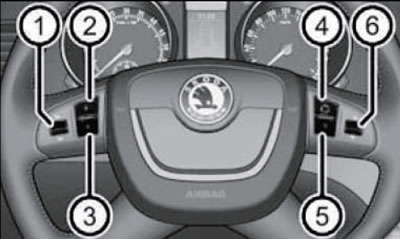
15.1. Keys on the multifunction steering wheel (the purpose of the keys is indicated in the table)
Depending on the configuration, one of several standard audio units may be installed. Some of them are combined with the navigation system unit. The audio unit is installed in the center console (12 in illustration 12.1). Depending on the number of speakers, they are designed for an amplifier output power of 4x20 W, or 4x40 W + 6x20 W.
The operating instructions for a specific model of audio system or navigation system are included with the vehicle that has the corresponding configuration.
Some trim levels may be equipped with AUXIN and MDI connectors. The AUX-IN input is located under the central front armrest and is marked "AUX". The MDI input is located in the storage compartment (29 in illustration 12.1). The AUX-IN and MDI sockets are used to connect external audio devices (for example, an iPod or MP3 player) and to output sound from these devices through the standard audio/navigation system. For a description of how to use the AUX-IN and MDI inputs, please refer to the instructions for your audio/navigation system.
In some trim levels, a CD changer may be installed in the left side trim of the luggage compartment (see illustration 15.2) for audio/navigation system. To insert a compact disc (CD), briefly press the button (A) - the indicators of the keys (D) corresponding to the free cells will flash, and the indicators in the keys corresponding to the occupied cells will light continuously. After this, briefly press the key (D) with the corresponding free number and insert the disc into the slot (B) with the label facing up - it will automatically be drawn in and installed in the corresponding cell. If you do not press the (D) button, the disk will be installed in the lowest free cell. If you press the button with a continuously lit indicator, the disc in the corresponding slot will be ejected. To insert multiple CDs, hold down the button (A) and then insert up to 6 discs in sequence into the slot (B) (by the number of buttons with flashing indicators). After this, the indicators in all buttons stop flashing. To eject a CD, briefly press the button (C) - the indicators in the buttons (D) corresponding to the occupied cells will light up. Press the desired button (D) and pull the disc out of the slot (B). To remove all discs from the CD changer, hold down the button (C) for at least two seconds and pull the discs out of the slot (D) one by one.
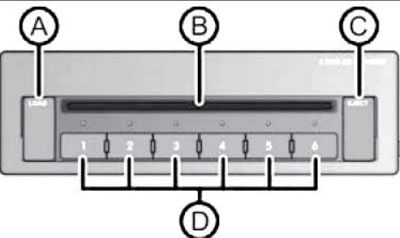
15.2. CD changer
Some trim levels feature DVD player on the rear of the front seat backs (see illustration 15.3). DVD players and their brackets can be selected from the Skoda accessories range. Installation and operating instructions are included with the DVD player.
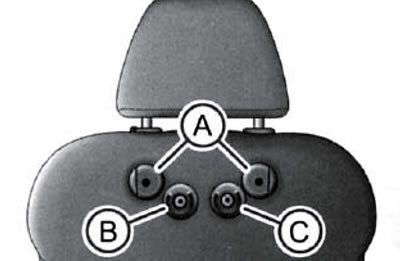
15.3. DVD preparation on the back of the left front seat (on the right seat - symmetrically) A. Holes for mounting DVD player bracket; B. Audio/video input; C. DVD player power input
Caution: Do not install the bracket without a DVD player if there are people sitting in the rear seats. The bracket should also be removed before folding the rear seat back.
If the steering wheel is equipped with a multifunction steering wheel, there are buttons on its left spoke (see illustration 15.1), designed to control the audio system/navigation system and telephone. The description of the purpose of these buttons is given in the table.
| Number in the illustration | Action | Radio, messages and traffic conditions | CD | CD changer/ MP3 | Navigation | Telephone |
| 1 | Short press | Turn sound on/off, activate/deactivate voice control¹ | Activate/deactivate voice control (pTT button), or cancel the displayed message | |||
| Long press | Turn on/off | No action | ||||
Pull Up ( ) ) | Increase volume | |||||
Pulling down ( ) ) | Decrease volume | |||||
| 2 (►) | Short press | Move to the next stored station, or move to the next stored traffic message, or interrupt the traffic message | Go to next entry | No action | ||
| Long press | Interruption of traffic information | Fast forward search | ||||
| 3 (◄) | Short press | Go to the previous stored station, or go to the previous stored traffic message, or interrupt the traffic message | Go to previous entry | |||
| Long press | Interruption of traffic information | Fast search back | ||||
4 ( ) ) | Switching audio source | No action | ||||
4 ( ) ) | Short press | No action | Receiving a call, ending a call, entering the main menu of the phone, list of numbers being called | |||
| Long press | No action | Call rejection, private conversation | ||||
5( ) ) | Short press | Call the previous menu | ||||
| Long press | Calling the main menu | Return to the screen with the volume indicated | ||||
| 6 | Short or long press | Interruption of traffic information | No action | Move to the next letter in the phone book | ||
Pull Up ( ) ) | Displays a list of stored stations, or scrolls up, or interrupts the traffic information | Go to next entry | No action | Previous position, name | ||
| Pull Down (▼) | Displays a list of stored stations, or scrolls down, or interrupts the traffic information | Go to the beginning of the current or previous entry | Next position, name | |||
¹Only for the "Columbus" navigation system.
The use of radios in a car is permitted only if there is a correctly installed external antenna and the transmitter power is no more than 10 W. Radios with a transmitter power of more than 10 W must be installed at a Skoda service station.
When using a mobile phone in a vehicle without a phone adapter inserted and therefore not connected to an external antenna, the electromagnetic radiation limits may be exceeded. This may cause a malfunction of the vehicle's electronic systems, especially if the transmitter power is over 10 W. In this regard, it is recommended to use a mobile phone in the vehicle only if it is connected to an external antenna via a phone adapter.
Mobile Phone Holder (handsfree device)
Some trim levels include a mobile phone holder with charging function and voice control and/or SOS emergency call buttons. In this case, the phone can be controlled using the buttons on the multifunctional steering wheel (see illustration 15.1) or via the navigation system. The connection between the mobile phone and its holder is via Bluetooth. The holder is connected to an external antenna.
Phone book
An integral part of the voice-controlled telephone preparation is a "phone book" with 2500 entries. This phone book can be used regardless of the type of mobile phone. The system starts downloading the phone list from the phone and SIM card to the device memory after the first connection of the phone. Each time you connect your phone to the device, only the contact list is updated, which may take several minutes. During this time, you can use the phone book saved since the last update. Newly saved phone numbers are displayed only after the update is complete. If the phone is activated during the update (for example, incoming or outgoing call, or voice control), the update is interrupted and resumed after the phone is no longer in use.
Connecting a mobile phone to a hands-free device
Note: For details on this operation, refer to the mobile phone's operating manual.
To connect your phone to a hands-free device, you need to create a new profile. To do this:
- activate Bluetooth and mobile phone detection on your phone;
- turn on the ignition, enter the menu "Phone→Search for phone" and wait for the search to finish;
- in the menu of detected devices, select the desired mobile phone and confirm the PIN code (usually 1234);
- as soon as the hands-free device appears on the mobile phone display (usually "SKODA_BT"), enter the PIN code within 30 seconds (usually 1234) and wait until the connection is established;
- after establishing a connection, confirm the creation of a new user profile on the instrument cluster display.
You can create up to four profiles, but the hands-free device can only communicate with one phone. If there is no more free space to create a new user profile, delete the extra user profile. If the connection between the mobile phone and the hands-free device is not established within 3 minutes after turning on the ignition, turn off the ignition and turn it on again (3 minutes will be given again to detect the hands-free device). While establishing a connection, do not connect another mobile phone to the hands-free device.
The Bluetooth device detection function is turned off automatically after the vehicle is driven or when the mobile phone is connected to the device.
Establishing a connection with an already connected phone (having a profile with a hands-free device) is carried out automatically after the ignition is turned on.
Note: Some mobile phones have a setting for PIN authorization to establish a connection via Bluetooth. If this authorization is enabled, you must enter the PIN code each time you establish a connection. The connection can be checked on a mobile phone.
The connection between the phone and the hands-free device is broken by removing the key from the ignition switch, or through the phone/hands-free device menu.
If the system reports "No connected phones found" check the working condition of the phone (is it turned on, is the PIN code entered, is Bluetooth enabled, is the phone discoverable, has a connection profile been created).
The range of the handsfree device via Bluetooth is limited by the interior of the vehicle and also depends on local conditions (for example, from obstacles between devices and interference from other devices). It is recommended that the phone be kept in the holder during travel.
Holder and adapter for phone
Only a phone holder can be installed as standard. An adapter for the required phone model can be purchased from the range of Skoda branded accessories.
Insert the adapter (And in illustration 15.4) into the holder first all the way up in the direction of the arrow, and then lightly press the adapter down until it clicks into the locked position. After that, insert your phone into the adapter (according to the manufacturer's instructions).
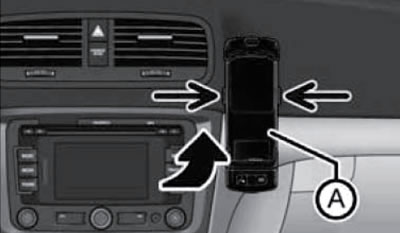
15.4. Installing and removing the phone adapter
To remove the adapter from the holder, press the buttons on the sides of the holder (see illustration 15.4), remove the phone together with the adapter.
Note: Removing the phone from the adapter during a call may result in a disconnection. When removed, the connection with the standard antenna is broken, thereby reducing the quality of reception/transmission. In addition, the phone battery stops charging.
Control your phone from the holder
Voice control of the phone is activated by short pressing of the "PTT" button (with a telephone handset symbol) on the adapter. On some adapters, in addition to the "PTT" button, there is also an "SOS" button. After pressing the "SOS" button, the number 112 is dialed within 2 seconds.
Controlling your phone via the instrument cluster display
You can control your phone via the "Phone" submenu of the main menu of the instrument cluster display (Section 13). The following describes the items in the "Phone" menu.
Phone book - a list of contacts (up to 2500) copied from the memory and SIM card of a mobile phone.
Dialing - recording any phone numbers. Using the knurled setting key, select the required numbers one by one and confirm their entry by pressing the key. You can select numbers 0-9, symbols +, *, # and the functions "Delete", "Call", "Cancel".
Call lists - select the desired call list: missed, received or recent.
Voicemail - Set your voicemail number.
Bluetooth - select the following items:
- User - overview of profiles saved in memory;
- New User - Search for new phones that are in the reception area;
- Visibility - Enables the hands-free device to be discovered by other devices;
- Media player - select active device or connected devices, and search;
- Phone name - ability to change the name of the handsfree device (preset to "SKODAJ3T")
Settings - select the following items:
- Phone book;
- Refresh;
- Sorting (by last name or first name);
- Ringtone;
- Back - return to the main menu of the phone.
Play music via Bluetooth
Universal GSM Phone Preparation II allows you to play music via Bluetooth from devices such as MP3 player, mobile phone or laptop (they must support Bluetooth A2DP profile). To be able to play music via Bluetooth, you need to connect the appropriate device to the hands-free via the menu "Phone→Bluetooth→Media Player" (see subsection above).
Music playback from a connected device can be controlled via the hands-free device using voice control (see subsection below) or directly through a connected device.
Voice control of the phone
The time during which the hands-free device is ready to receive and execute voice commands is called "dialogue". The system responds to voice commands with an audio message and, if necessary, provides information on individual functions.
You can start/end the dialogue at any time by pressing the "PTT" button (with a telephone receiver) on the phone adapter or on the multi-function steering wheel. You can also end the conversation with the voice command "Cancel". Pressing the "PTT" button during a message ends the message that was just played. In the event of an incoming call, the dialogue ends immediately and the call can be answered by pressing the PTT button on the multifunctional steering wheel or by pressing the button to answer the call directly on the phone.
If the system does not recognize the voice command, it displays the first part of the help, thus providing the opportunity to give a new task. After the 2nd incorrect attempt, the system displays the second part of the help. After the 3rd incorrect attempt, the response is "Cancel" and the dialogue ends.
For optimal perception of a voice command, the following conditions must be met:
- speak at a normal voice volume, without an accent or excessive pauses.
- avoid bad pronunciation;
- close doors, windows and overhead hatch to limit environmental exposure;
- at higher speeds, speak louder so that the command is not drowned out by noise;
- during the dialogue, limit extraneous noise in the car, such as conversations between passengers;
- do not talk when the device issues any command;
- the voice control microphone is directed towards the driver, so the device may respond less well to commands from the front passenger.
Voice control can be carried out in one of the following languages: Czech, English, German, French, Italian, Spanish, Russian, Portuguese, Dutch. Below is a list of voice commands for controlling your phone using English as an example.
HELP Displays all possible commands.
CALL XYZ Call a subscriber from the phone book (see above).
PHONE BOOK After this command you can set, for example, playback of the phone book, setting or deleting a contact, etc.
CALL REGISTER List of called numbers, missed calls, etc. DIAL NUMBER After this command, you can set the phone number for subsequent dialing.
REDIAL Displays the last dialed numbers.
MUSIC Play music from your mobile phone or other connected device.
OTHER OPTIONS Select other commands for the current menu/operating mode
SETTINGS Bluetooth settings, dialog, etc.
CANCEL End the dialogue.
A telephone number can be specified as a sequence of individual digits or blocks of digits (with pauses after each block). After each block of numbers, separated by a short interval, all numbers recognized by the system up to that time are repeated. Allowed numbers are 0-9, symbols +, * and #. The system does not recognize combinations of numbers (for example, twenty three).
Below is an example of a dialogue (command - response) when calling a subscriber from the phone book (after pressing key "PTT"): "CALL XYZ" - "Say home, work, mobile", "WORK" (For example) -"XYZ work is dialed.", "CALL XYZ WORK" - "XYZ work is dialed."